
When you need to move a whole batch of leads to a new stage, reassign a departing team member’s entries, or bulk-archive closed deals, Gravity Pipeline Pro’s bulk actions save significant time.
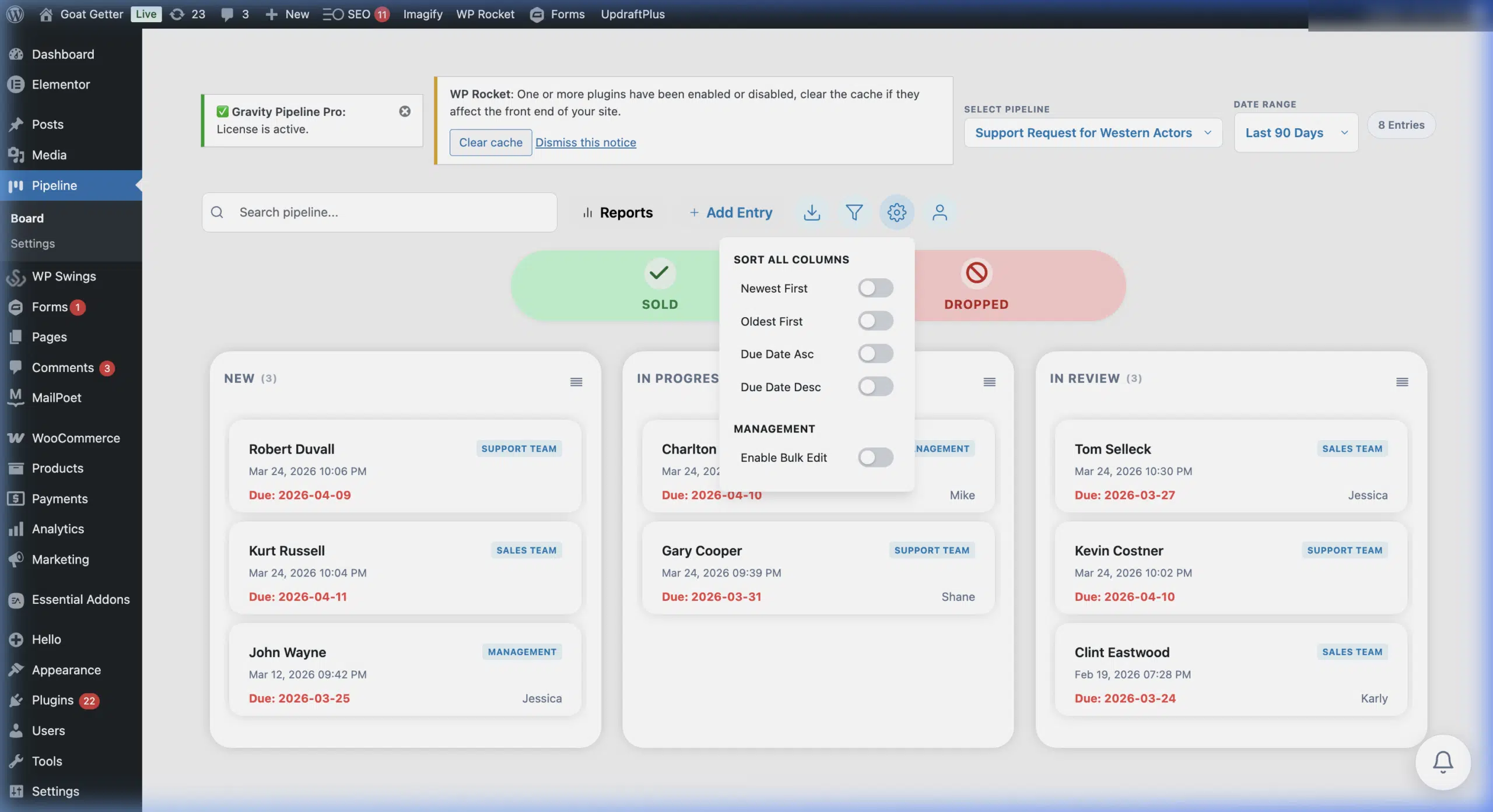
Selecting Multiple Cards
- On the pipeline board, hover over any card to reveal the checkbox in the top corner.
- Click the checkbox to select that card.
- Continue clicking checkboxes on other cards to add them to your selection.
- To select all cards in a column, click the column’s header checkbox.
A bulk action toolbar appears at the bottom of the screen as soon as any cards are selected, showing how many entries are selected.
Available Bulk Actions
- Move to Stage — move all selected entries to a specified column
- Assign To — reassign all selected entries to a team member
- Archive (Won) — archive all selected entries to the Won/Sold zone
- Archive (Lost) — archive all selected entries to the Lost/Dropped zone
- Delete — permanently delete the Gravity Forms entries (use with caution)
Performing a Bulk Action
- Select your cards using checkboxes.
- In the bulk action toolbar at the bottom, choose an action from the dropdown.
- Configure any required options (e.g., which stage to move to, or which user to assign).
- Click Apply. A confirmation dialog appears for destructive actions.
Filtering Before Bulk Selection
For precise bulk actions, apply a filter first (e.g., filter by assignee or stage), then use the column header checkbox to select all matching visible cards. This prevents accidentally selecting unintended entries.