
Archive drop zones are one of the most powerful board-management features in Gravity Pipeline Pro. Instead of cluttering your active board with closed deals or cancelled entries, you drag them into a dedicated archive zone — keeping the board clean while preserving all the data.
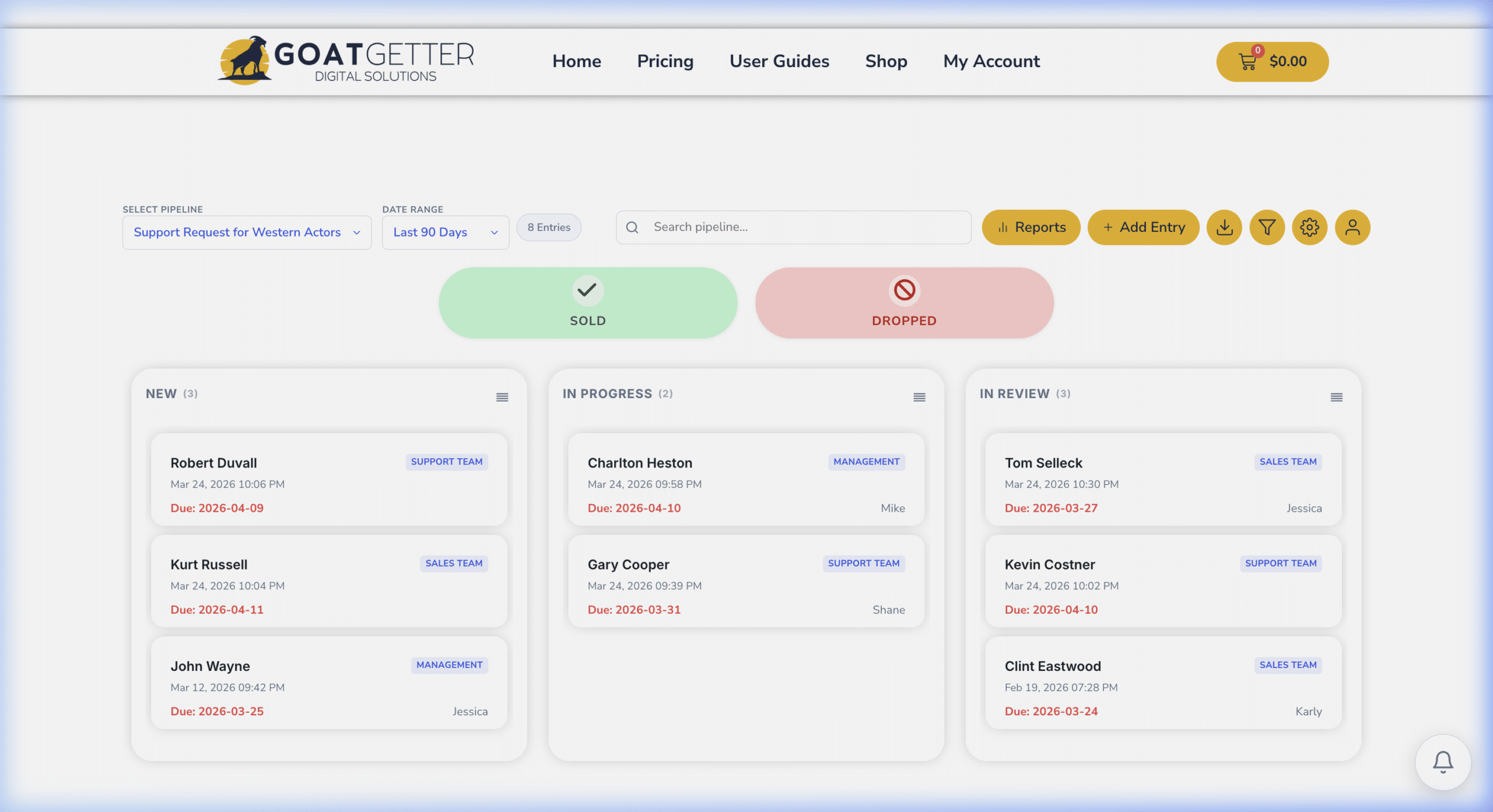
The Two Archive Zones
- Won / Sold: For successfully closed entries — deals won, sales completed, projects delivered.
- Lost / Dropped: For entries that didn’t convert — lost deals, cancelled projects, unqualified leads.
Enabling Archive Zones
- Go to Forms > Settings > Gravity Pipeline and open your pipeline feed.
- Scroll to the Archive Settings section.
- Enable Show Won/Sold Zone and/or Show Lost/Dropped Zone.
- Map the Archive Status Field — the form field that gets updated when an entry is archived.
- Set the Archived Value — the field value that signals an entry is archived (e.g., “Sold” or “Dropped”).
- Click Save Settings.
Using Archive Drop Zones
- On the pipeline board, scroll below the main column area to see the archive zones.
- Drag any card from the active board into the Won or Lost zone.
- The entry is moved off the active board instantly and its status field is updated.
Mapping the Reason Dropped Field
When dragging into the Lost/Dropped zone, you can prompt users to enter a reason. Map a form field (e.g., a dropdown called “Reason Lost”) in the feed settings under Reason Dropped Field. A modal will appear asking for the reason before archiving.
Viewing Archived Entries
Click the Archive toggle on the board to show archived entries alongside active ones, or access them directly from the Gravity Forms entries list filtered by their archived status value.