
Gravity Pipeline Pro gives you granular control over who can access your pipelines, what they can edit, and which boards they can see. This guide covers role-based access and per-pipeline permissions.
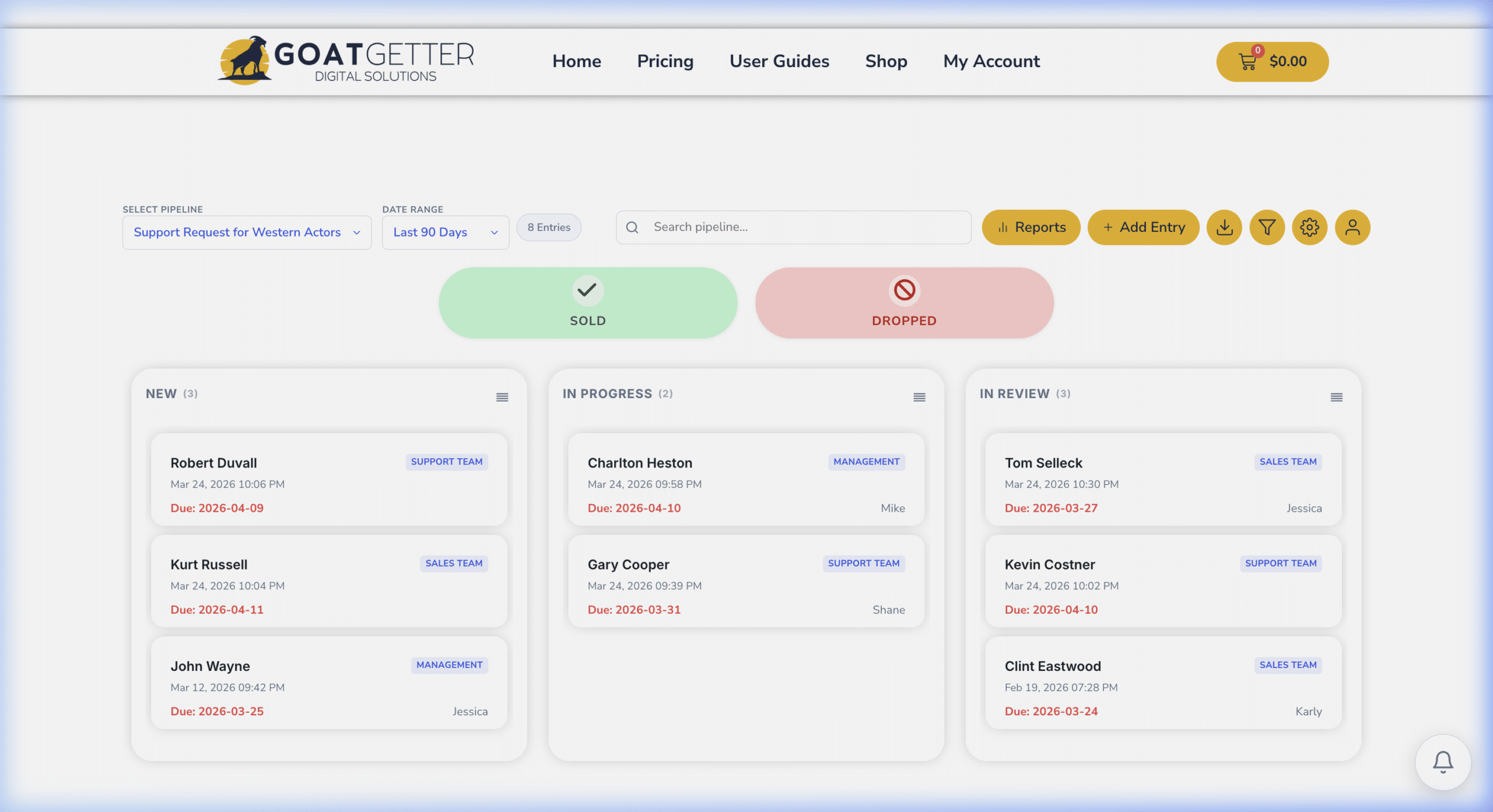
How Pipeline Permissions Work
Gravity Pipeline inherits WordPress user roles as a baseline, then adds pipeline-level overrides so you can fine-tune access per board.
Built-In Role Capabilities
| Role | Default Pipeline Access |
|---|---|
| Administrator | Full access to all pipelines and settings |
| Editor | View and move entries on all pipelines |
| Author | View pipelines; can only edit their own assigned entries |
| Subscriber | No access by default |
Configuring Per-Pipeline Access (Pro)
- Go to Forms > Settings > Gravity Pipeline and open your pipeline feed.
- Scroll to the Access Control section.
- Choose Restrict to specific users or Restrict to specific roles.
- Select the users or roles who should have access to this pipeline.
- Save settings.
Restricting Entries by Assignee
To ensure users can only see entries assigned to them (not the whole board):
- In the pipeline feed settings, enable Show Only Assigned Entries for specific roles.
- Users with that role will only see cards where they are the assigned team member.
Setting Goals Per User
Pro allows you to set performance goals (e.g., monthly sales targets) per user, visible on the analytics dashboard. Configure these under Forms > Gravity Pipeline > Team Settings > User Goals.