
Pipeline stages (columns) are the backbone of your Gravity Pipeline board. They represent the steps in your workflow — whether that’s a sales process, a project lifecycle, or a task queue. This guide covers how to set up, rename, and organize your columns.
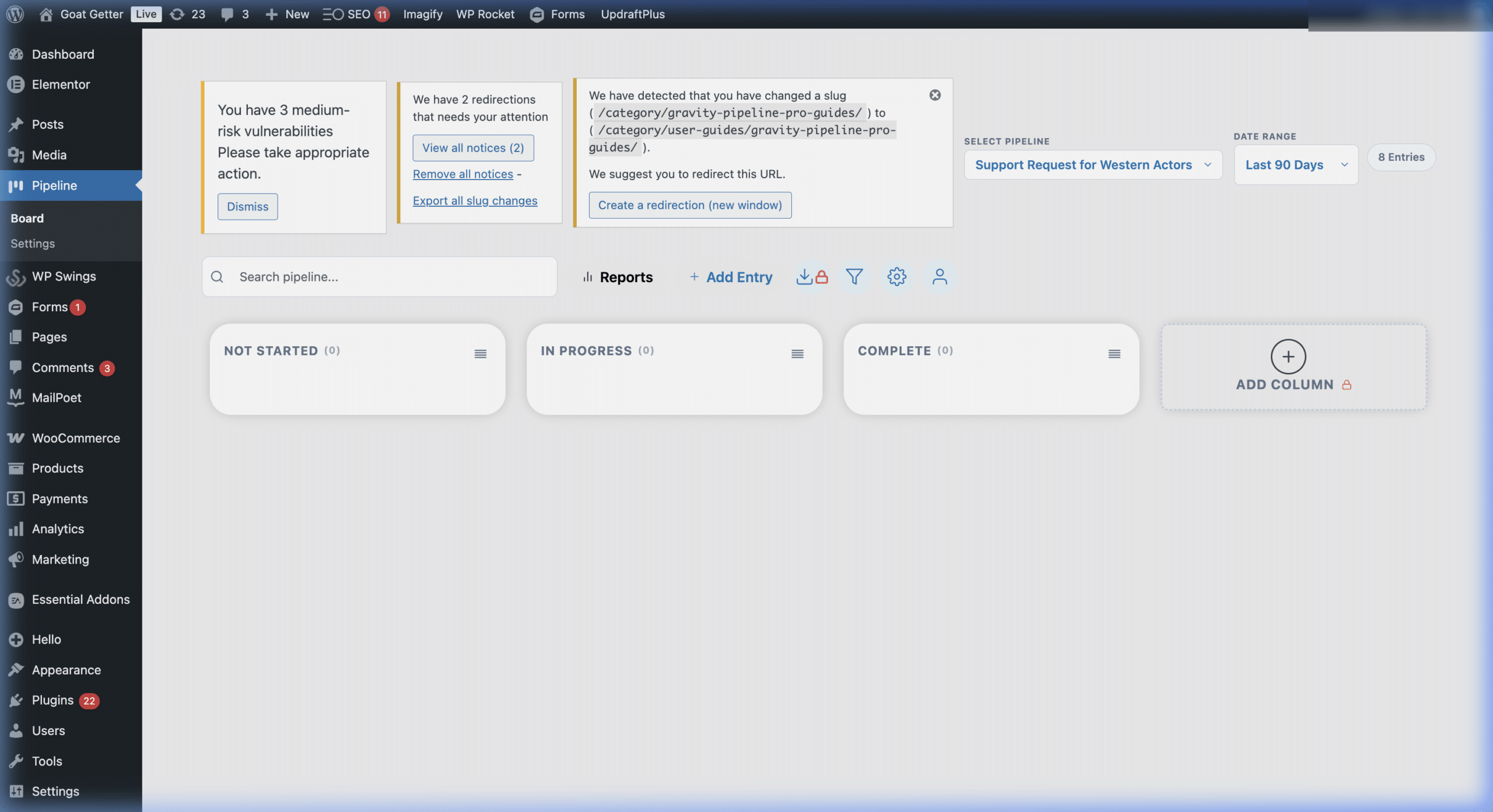
How Stages Work
Each stage column is tied to a specific value in your Gravity Form’s status field. When a form entry has that value set, it appears in the corresponding column. Moving a card between columns automatically updates the entry’s status value in Gravity Forms.
Adding a New Stage
- Go to Forms > Settings > Gravity Pipeline for your form.
- Open the pipeline feed you want to edit.
- In the Columns section, click Add Column.
- Enter the Column Label (displayed on the board) and the matching Form Value from your status field.
- Click Save Settings.
Renaming a Stage
To rename a column, simply update the Column Label for that stage in the pipeline feed settings. This only changes the display name on the board — it does not affect the underlying form choice value.
Reordering Stages
Drag the columns in the feed settings to reorder them. The order you set here is the order they’ll appear left-to-right on the board.
Column Best Practices
- Keep it to 5–7 columns for readability. Too many stages create a cluttered board.
- Start with an intake column (e.g., “New” or “Submitted”) — this is where fresh form entries land by default.
- End with a terminal stage that signals completion (e.g., “Closed,” “Completed,” “Sold”) — Pro users can use Archive Zones instead.
- Match column names to your team’s language — use terminology your users will instantly understand.
Pro: Color-Coding Columns
Gravity Pipeline Pro allows you to assign a background color to each column, making it visually easy to scan the board at a glance. This is configured in the same feed settings area under Column Color.
Next step: Choose the right pipeline type for your workflow →